
Download Client
Torrent clientUsenet clientDownloads
Allows you to view and manage your Downloads from both Torrent and Usenet clients.
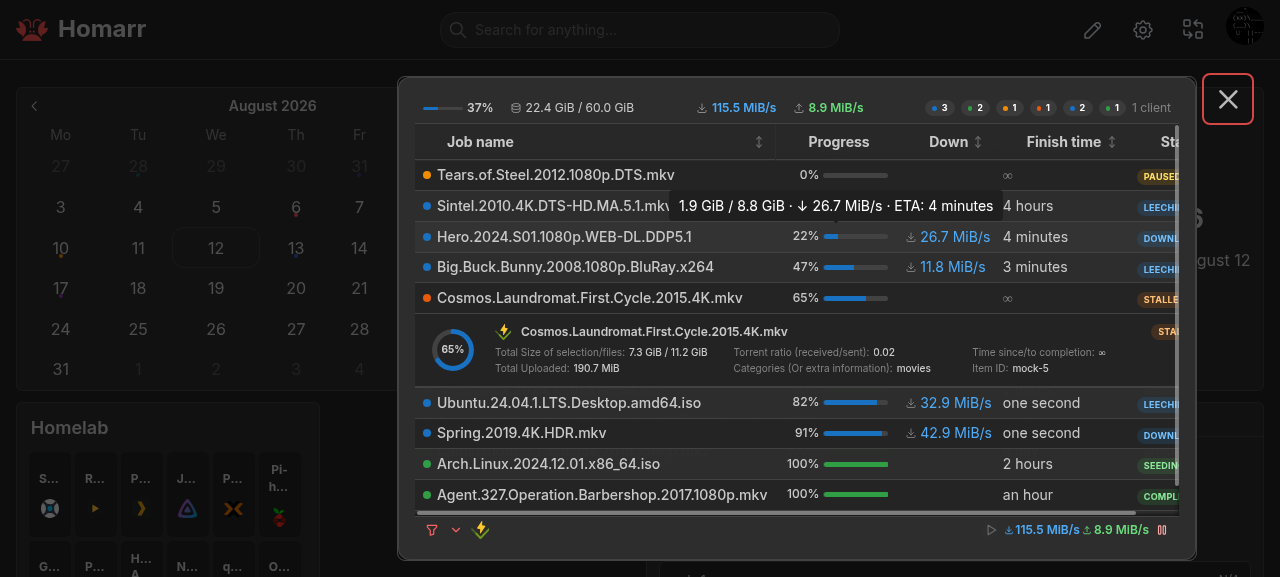
The Download Client widget combines active jobs from supported Torrent, Usenet, and other download clients. Rows can be sorted, filtered, expanded, and configured by column. Advanced view adds queue statistics and the complete selected column set.
Pause, resume, and delete actions require Interact access to the source integration. slskd is list-only. If one source
fails, jobs from healthy integrations remain available.
Advanced view
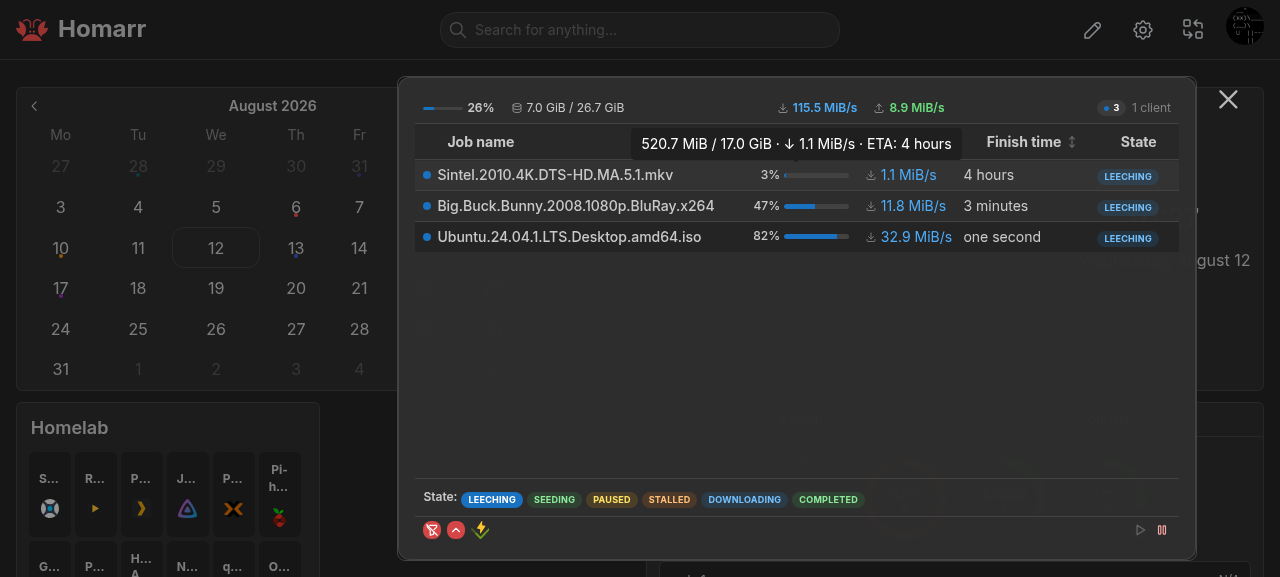
Filtering
Supported integrations

SABnzbdSABnzbd is an Open Source Binary Newsreader.Usenet client

NZBGetNZBGet is a lightweight and efficient Usenet downloader.Usenet client

DelugeDeluge is a lightweight, Free Software, cross-platform BitTorrent client.Torrent client

TransmissionA Fast, Easy and Free Bittorrent Client.Torrent client

qBittorrentqBittorrent is a free and open-source BitTorrent client.Torrent client

Aria2Lightweight multi-protocol & multi-source command-line download utility. It supports HTTP/HTTPS, FTP, SFTP, BitTorrent and MetalinkMulti-protocol download client

SlskdA modern client-server application for the Soulseek file sharing network.Soulseek client; list-only
Interactions
- Select a row to expand its details.
- Right-click a row to copy identifiers or run permitted actions.
- Use the footer to filter clients and states, show statistics, or pause and resume actionable queues.
Supports advanced view. See the advanced keyboard shortcuts.
Adding the widget
Add the widget from the board's Add board content menu in edit mode.
Configuration
| Name | Description | Values | Default value |
|---|---|---|---|
| Columns to show | Select the columns you want to display in the widget. Compact layouts automatically hide/show selected columns based on widget width and height; advanced view keeps the selected columns visible. | List of columns: name, progress, size, downSpeed, upSpeed, time, state, added, ratio, received, sent, category, integration, index, type | name, progress, downSpeed, time, state |
| Default sort column | The column used for initial sorting when the widget loads. Clicking a column header changes the current view only. | List of columns: name, progress, size, downSpeed, upSpeed, time, added, ratio, received, sent, index, type | progress |
| Invert sorting | This sets the initial sorting direction. | yes / no | no |
| Show usenet entries marked as completed | This will show entries that have been completed in your Usenet client. | yes / no | yes |
| Show torrent entries marked as completed | This will show entries that have been completed in your Torrent client. | yes / no | yes |
| Show Miscellaneous entries marked as completed | This will show entries that have been completed in your Miscellaneous client. | yes / no | yes |
| Hide completed torrent under this threshold | This hides completed torrents whose upload speed is below the threshold. The input uses KiB/s with binary units and KB/s with decimal units. | Any number above 0, 0 to disable | 0 |
| Categories/labels to filter | You can filter the items by categories or labels. Use a comma to separate multiple values. | Comma-separated list of categories or labels | - |
| Filter as a whitelist | If enabled, only items that match the filter will be shown. If disabled, items that do not match the filter will be hidden. | yes / no | no |
| Use category filter for global torrent ratio | When enabled, the configured category/label filter is applied to the global torrent ratio. Footer client/status filters do not change this ratio. | yes / no | yes |
| Limit items per integration | This will limit the number of items shown per integration, not globally. | Any whole number from 1 upward | 50 |