
Search Engines
Using the search engines, terms can be quickly searched simply by opening the search bar at the top or using the keyboard shortcut MOD + K.
The management page provides a searchable list with the shortcut, URL template, source, and available row actions for each engine.
The default Search mode lists every configured search engine as a fallback action for the current query. To discover
engines by shortcut, switch to Web with !. DuckDuckGo bang discovery is intentionally limited to Web mode so an
ordinary search term never expands into similarly named bang providers.
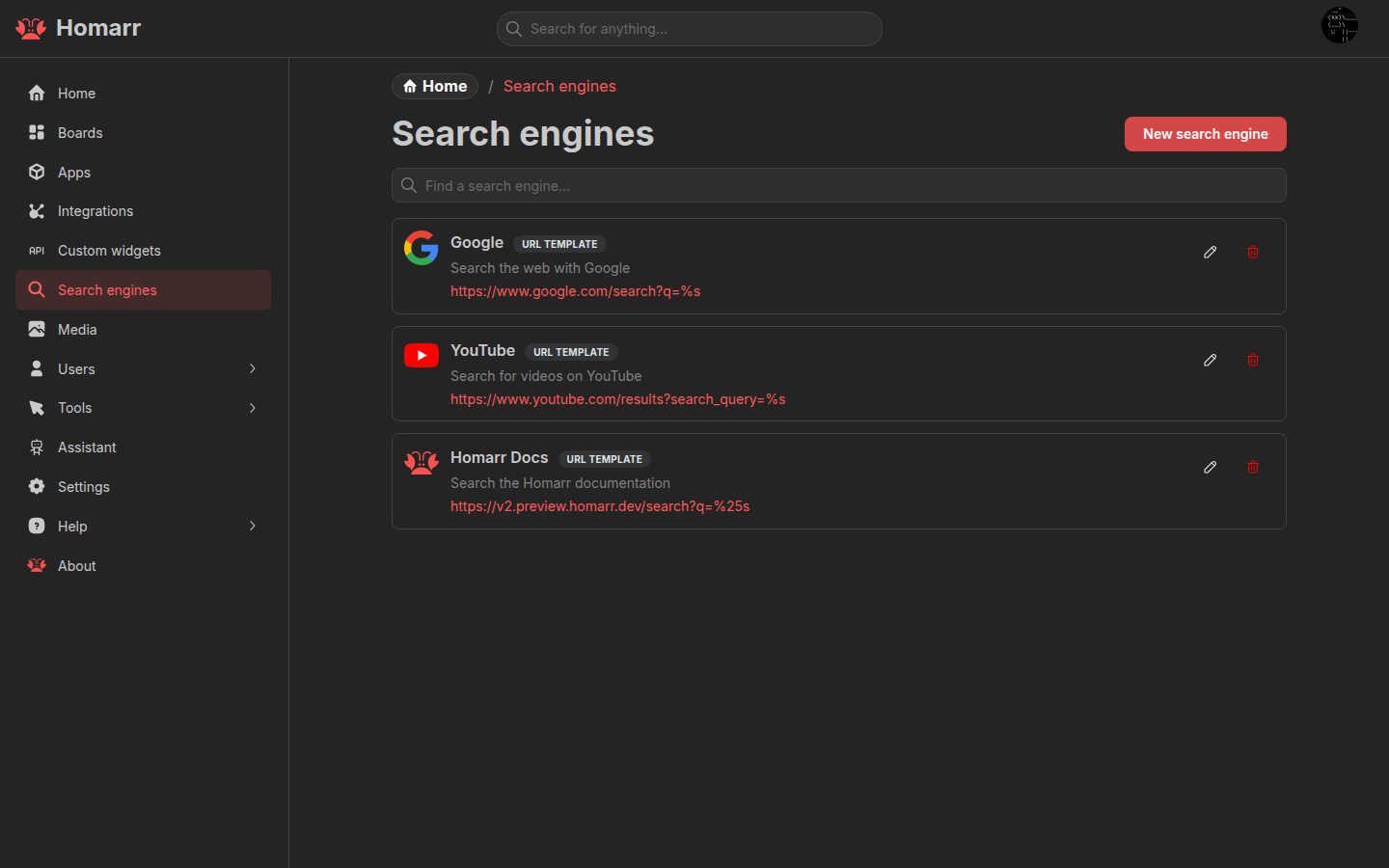
You can add any search engine that has a search URL that accepts a search term as a parameter.
Create search engine
To create a custom search engine, you can click the button at the top of the page.
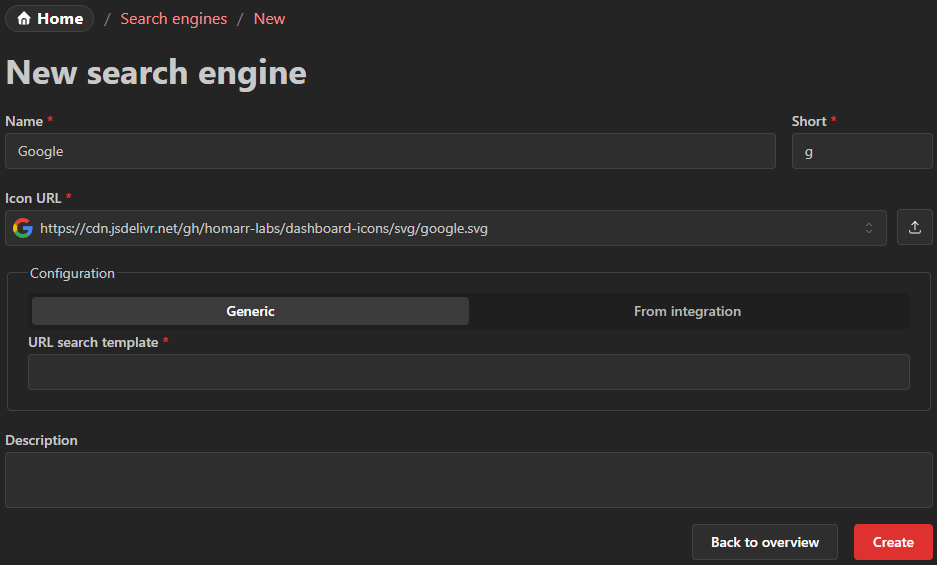
Name
The name can be chosen freely. It will be displayed in the search box popover.
Short
Prefix that is used to choose the search engine in the popover using the keyboard.
It is recommended that this value is kept short (for example g for Google and e for Ecosia).
Type ! in Spotlight to browse these shortcuts and, when DuckDuckGo bangs are enabled in preferences, discover
additional bang providers.
Configuration
In the configuration section you can select between two options.
Search template
The template must be a valid URL that includes the %s placeholder.
Homarr will replace the %s with the term that the user entered.
Examples
- Google:
https://www.google.com/search?q=%s - Ecosia:
https://www.ecosia.org/search?q=%s - DuckDuckGo:
https://duckduckgo.com/?q=%s - Bing:
https://www.bing.com/search?q=%s - YouTube:
https://www.youtube.com/results?search_query=%s
Media request search
Jellyseerr, Overseerr, and Seerr integrations have a dedicated Spotlight mode for searching and requesting media. This mode does not require creating a search engine entry - it is available automatically when you have a compatible integration configured.
You can access it from:
- The Modes list in Spotlight (opened with
CTRL + K) - The search button on the media request list and stats widgets
Availability indicators
Search results display colored status badges showing the media's current state in your integration:
- Available - fully available in your media library
- Partial - some content (e.g. seasons) is available
- Processing - currently being downloaded or processed
- Requested - requested but not yet available
Requesting TV show seasons
For partially available TV shows, you can request additional seasons. The request modal shows which seasons are already requested (marked with a status badge and not selectable), so you can select only the missing seasons.